When someone leaves your Articulate 360 team (for example, a colleague who leaves the company), you want to make sure no content is lost. In Articulate 360, you can not only remove team members, but also safely transfer their modules and projects to another author.
TABLE OF CONTENTS
- 1. Open the team overview
- 2. Select the team member
- 3. Click Remove from 360
- 4. Transfer content (important!)
- 5. Is the new owner not yet in the team?
- 6. No available licenses?
- 7. Complete the removal
1. Open the team overview
Go to your Account Settings and click Manage Team to view the list of team members. 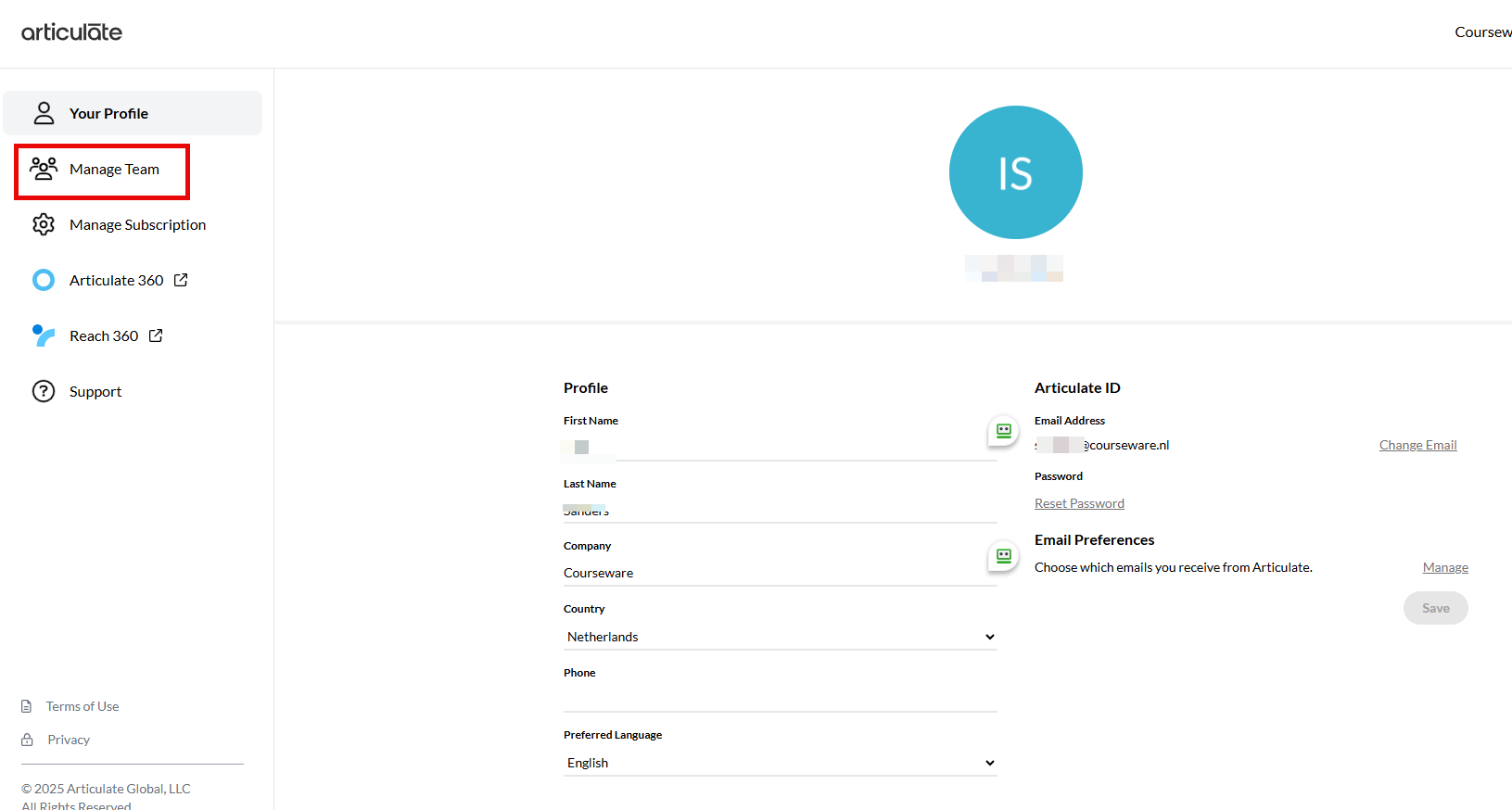
2. Select the team member 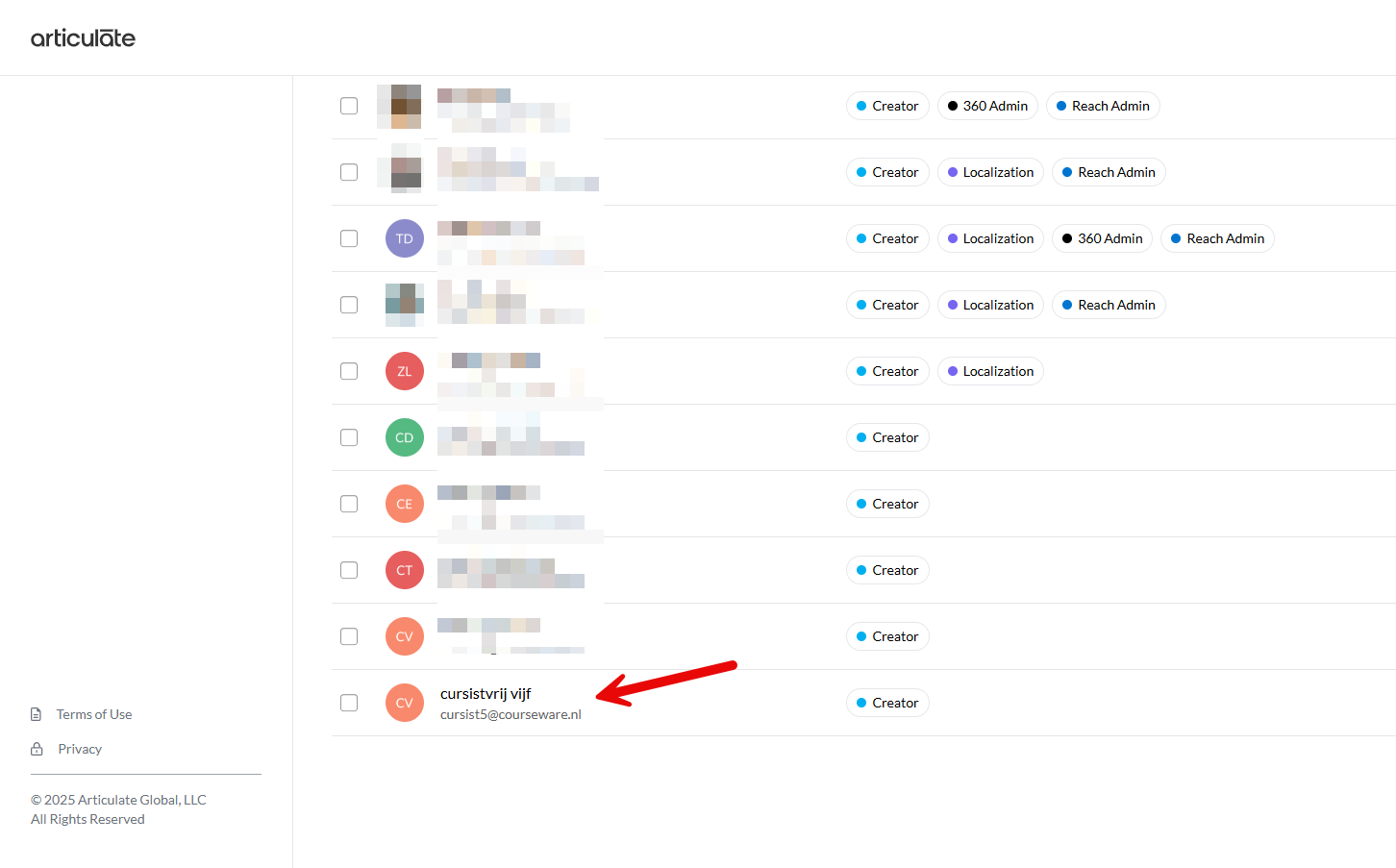
Click the name of the person you want to remove.
This opens the Edit permissions side panel.
Tip: Do you have admin rights (Primary admin / 360 admin)? If so, you can also select multiple people at once using the checkboxes.
3. Click on Remove from 360
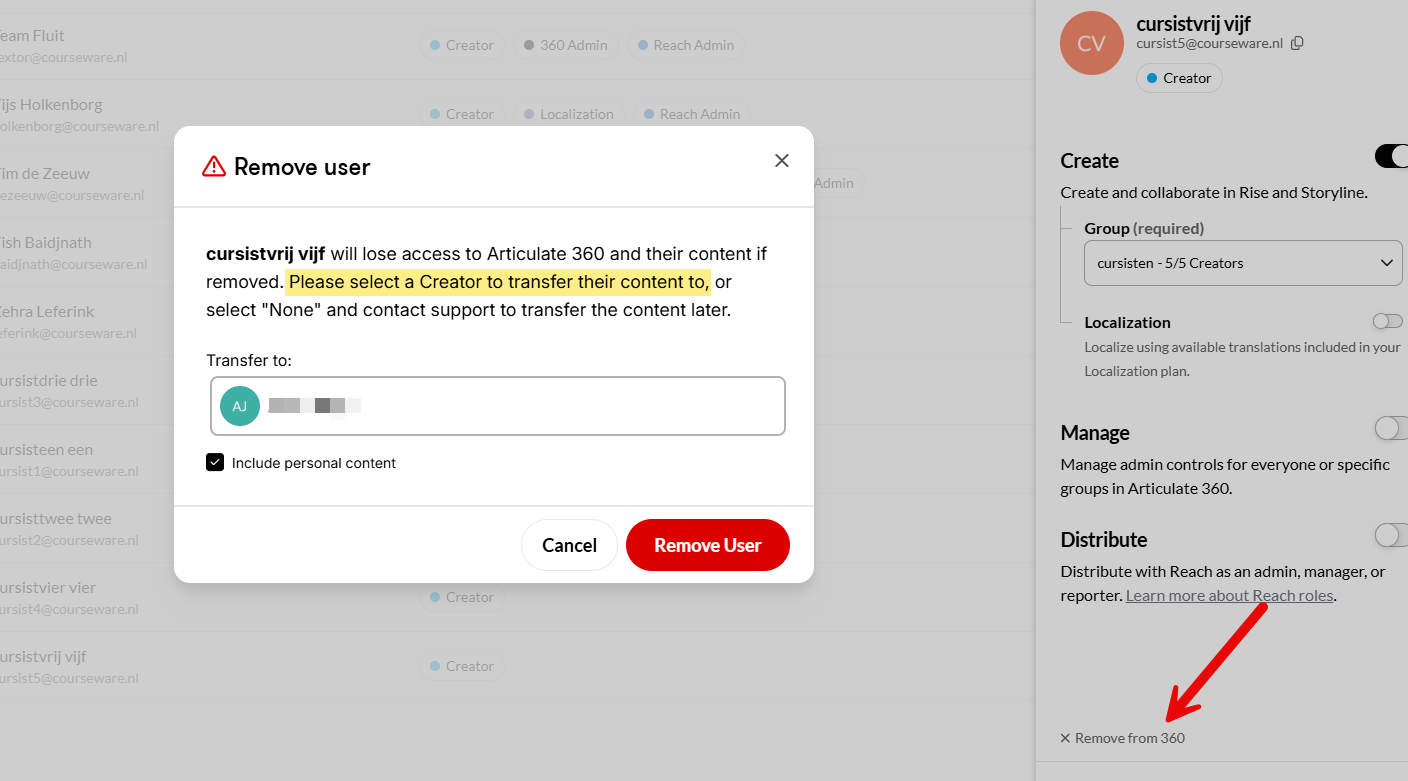
At the bottom of the side panel, you’ll find the Remove from 360 option.
This starts the removal process.
4. Transfer content (important!)
Transfer content to another team member
If the person had creator permissions (i.e. they created modules), you must transfer their content to someone else.
Under Transfer to, select the new owner (this can be a colleague or yourself).
You can search by typing the first letters of the name.
The new owner must have creator permissions.
Do you also want to include the user’s personal content (i.e. not just shared modules)? Then check Include personal content.
If you choose not to transfer shared content to a team member, that content will remain in the team without an owner. If you later want to assign this content to a team member, you will need to contact support@articulate.com
Take shared content with a Creator
In some cases, you may want a Creator to take the content they own with them when they leave the team. There are two options:
- Migrate the team: Articulate can move the entire team to another subscription. This requires some coordination and downtime, during which your team cannot work.
- If you want to let a creator take shared content with them, the best option is to stop sharing the content and make it personal.
- Make sure all content is no longer shared with other team members.
- When removing the creator, indicate that shared content should be transferred to a team member or admin.
- Do not check Include personal content.
- Once the creator is added under a new license, the now-personal content can be shared again.
5. Is the new owner not yet in the team?
Then you must first:
Invite them to the team
Grant Creator permissions
Only then can you transfer the content to them
They must accept the invitation before you can continue.
6. No available licenses?
If you temporarily need to add someone to transfer content, but there is no available seat, you can:
Temporarily deactivate someone else, or
Add an extra seat, or
Complete the transfer and then clean up immediately afterward
(A workaround may be possible where you swap seats, but that depends on your licensing structure.)
7. Complete the removal
Click Remove user.
The selected content is now safely assigned to the new owner.
Was this article helpful?
That’s Great!
Thank you for your feedback
Sorry! We couldn't be helpful
Thank you for your feedback
Feedback sent
We appreciate your effort and will try to fix the article