In Articulate 360 AI (formerly Rise), there are several ways to share and transfer a module with colleagues or other developers. This can also be useful when colleagues are leaving the Articulate team and you want to transfer their content to one or more colleagues beforehand.
CONTENT
1. Sharing via a team folder
Folders allow you to categorize content and easily add the same collaborators to a group of modules. The permissions assigned to a shared folder also apply to the content within that folder. Despite the name, you can also add Creators from teams outside your own license to the folder.
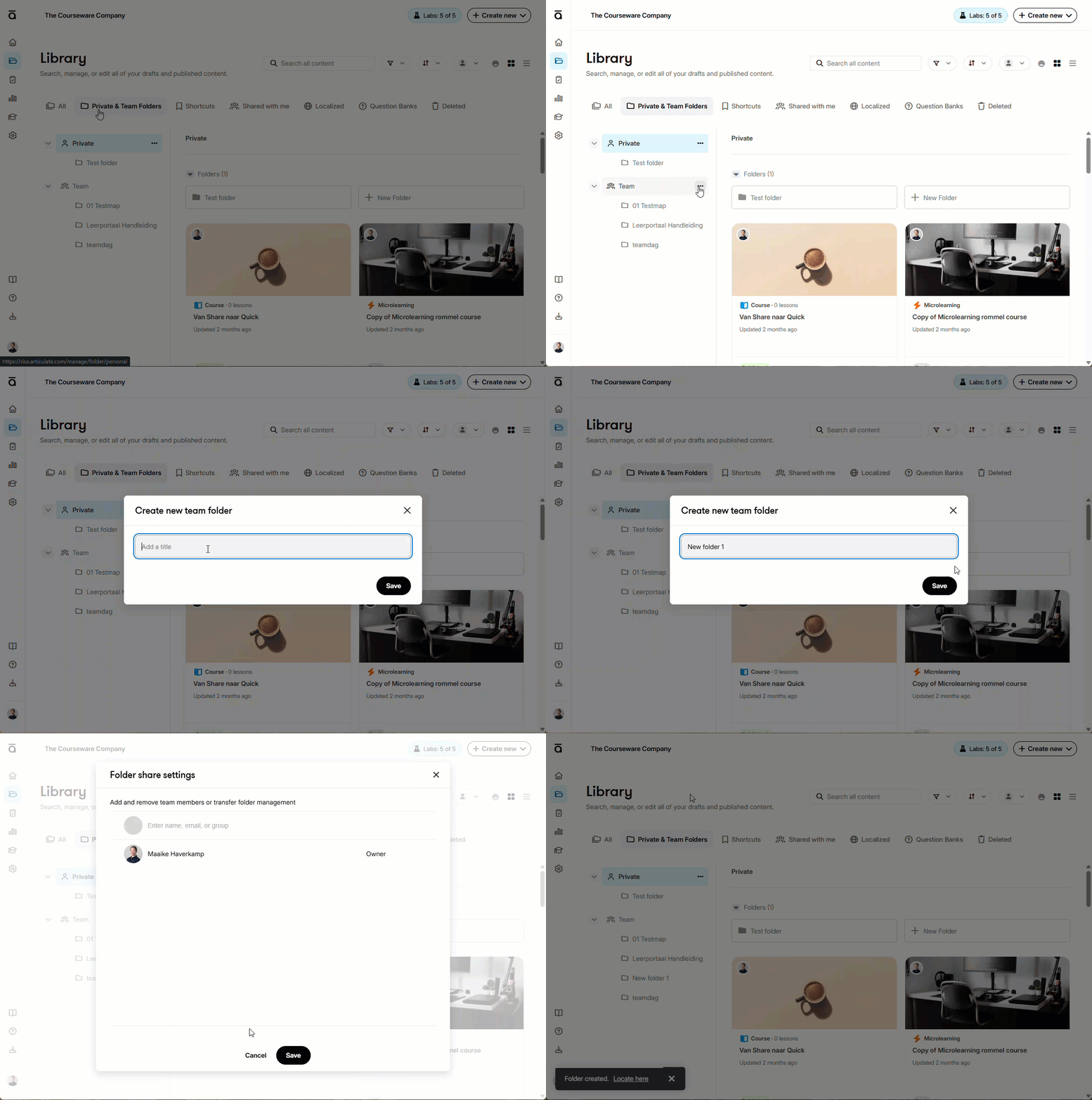
Creating a new folder
1. Go to Private & Team Folders
2. Click the three dots next to a team or next to an existing folder to create a subfolder
3. Give the folder a name
4. Choose who you want to share the folder with
5. Click Save
Placing a module in a folder
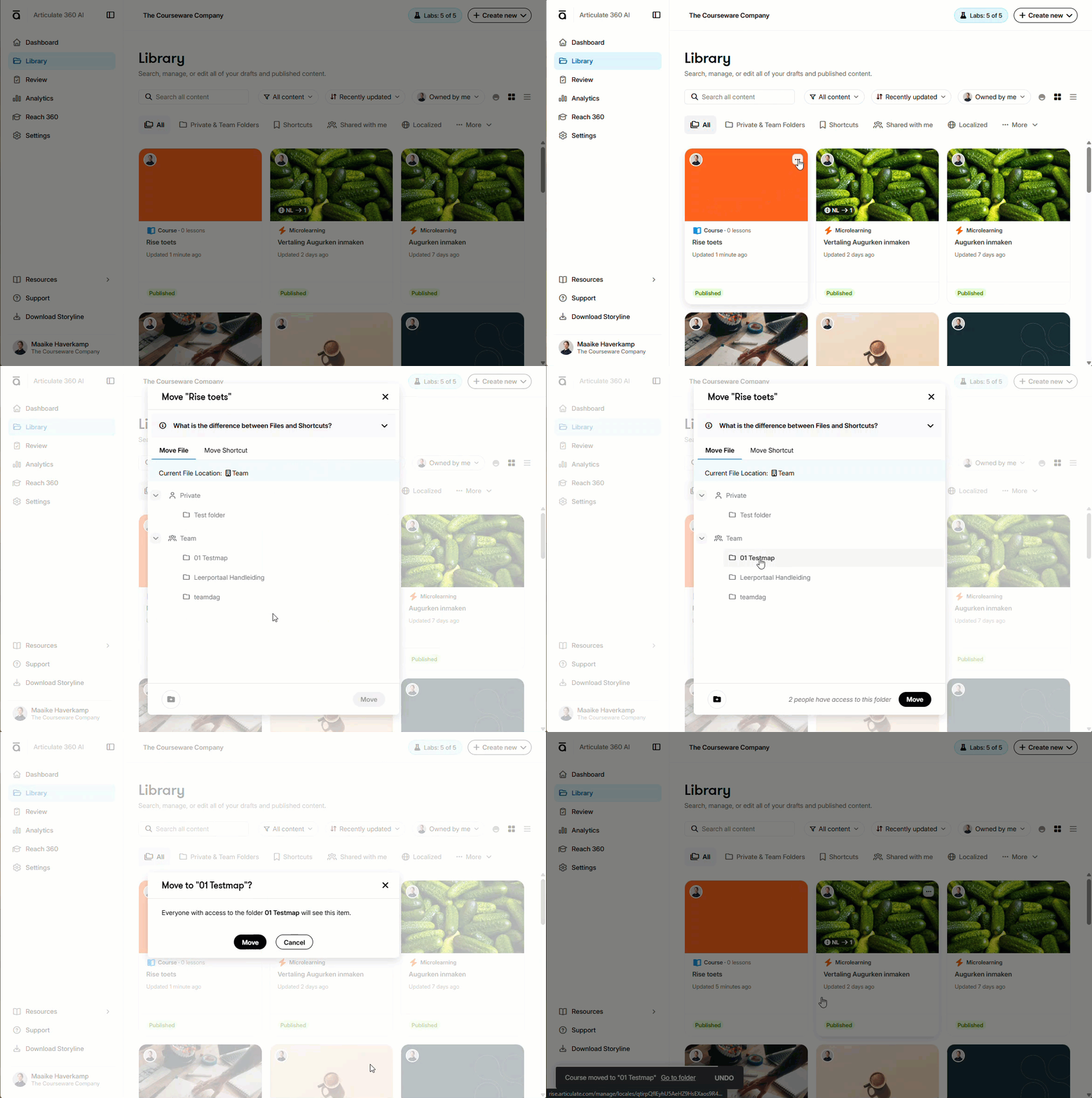
1. Open your Library
2. Click the three dots next to the module you want to move
3. Select Move
4. Select the appropriate folder
5. Click Move
6. You will see a warning that this will make your content visible to the Creators who have access to the folder. Click Move
The module will remain visible in your general Library because it is a module you have access to, but it is now also available through the folder.
Please note: Sharing a module or moving it to a team folder does not automatically change the owner of the module.
2. Working together with collaborators
You can assign collaborators to individual modules; this does not necessarily have to be done through folders. You can also transfer ownership of a module to a collaborator.
There are three roles:
Owner – The owner of the module and has full control. The owner must be a Creator to retain the content. If the owner of the module has not been a Creator for 6 months, the content will be permanently deleted.
Manager – Can edit, share and publish the module and manage various settings, but is not the owner.
Editor – Can edit the content of the module but does not have access to management, collaboration and publishing options.
Do you want to work on the same module with one or more colleagues? Add them as collaborators.
- Open the module in Articulate 360 AI
- Click Collaborate
- Add the desired colleague(s) using the email address associated with their Creator access
- Choose which role they should have; see above for the conditions of each role
Please note: You can add Creators who are not part of your team, provided they have active Creator access and are on the same data center.
Please note: Assigning someone the Manager role does not automatically make them the owner of the module.
Transferring ownership of a module
A module always has only one owner who has final responsibility for it. If you want someone else to become responsible for the module, the owner must explicitly transfer ownership to another collaborator. Only the current owner can do this.
Is the current owner no longer available? The Primary Admin can remove the team member from their assigned access, revoke their Creator access and transfer all their content to one other team member. For more information, see:
https://service.courseware.nl/en/support/solutions/articles/103000371980-articulate-360-teams-removing-team-members-and-managing-content-in-articulate-360-rise-
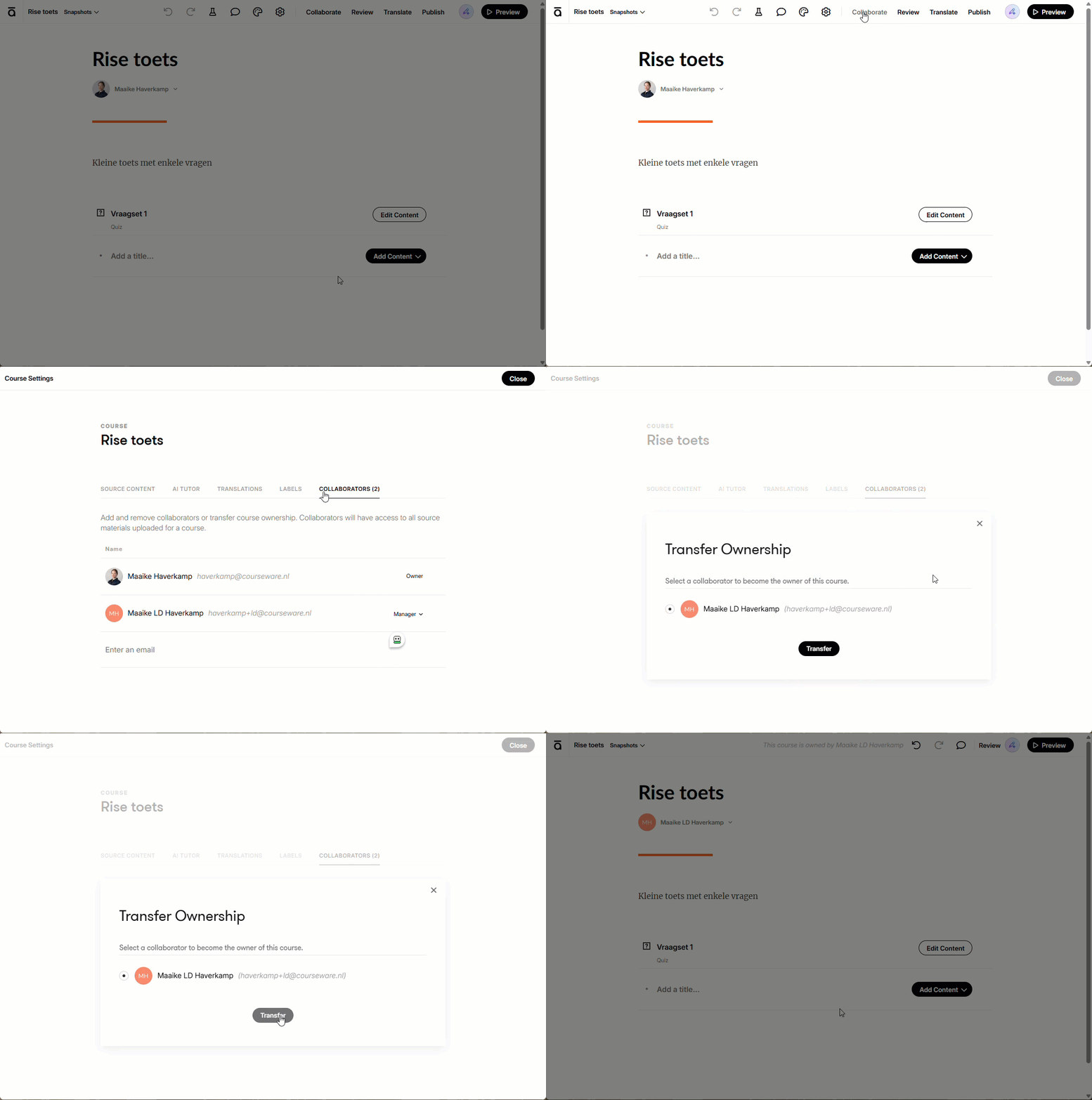
- Open the relevant module in Articulate 360 AI
- Click Collaborate
- Hover over your own name in the list of collaborators
- Click Transfer
- Select the collaborator who should become the new owner
- Click Transfer to confirm the transfer
- The selected person is now the new owner of the module
If the new owner is not yet listed as a collaborator, add them as a collaborator first. You can then transfer ownership.
Important: Existing collaborators remain linked to the module when you transfer ownership.
3. Sending a copy of a module
Do you want to give someone their own version of a module without changes they make affecting your own version? Use Send a copy.
- Go to your Articulate 360 AI dashboard
- Click the three dots (...) next to the module
- Select Send a copy
- Enter the recipient's email address
- Click Send
The module will then automatically appear in the recipient's Library. If the recipient later sends the modified module back to you, it will not be merged with the original. You will receive another separate copy.
Please note: Recipients of a copy must also be on the same data center and have active Creator access.
Tip: When exchanging copies, use clear names or version numbers so you can easily identify which version is the most recent.
Was this article helpful?
That’s Great!
Thank you for your feedback
Sorry! We couldn't be helpful
Thank you for your feedback
Feedback sent
We appreciate your effort and will try to fix the article